Adding a Note to a Clinical Information Record
If there's additional information you want convey for an existing Allergy, Intolerance, or Medical Condition record in the Patient Folder, you can add a Clinical Information note.
To learn more, select the applicable tab for your province.
Once a Condition has been sent to the EHR, it cannot be edited, except by adding notes locally. No other fields can be modified.
In contrast, an Allergy can be updated on the EHR but only if a drug was associated to the record. The only update permitted is the modification of an existing EHR note. No other fields can be modified. If an Allergy was transmitted without a drug, it can only be updated by adding notes locally, similar to a Condition.
If you need to correct any field for an ADR or Condition, you can remove and reenter the record in Propel Rx. If you do this for ADRs, it will update the existing record on the EHR (if it has the same DIN) and no further action is required. However, if you do this for Conditions (or Allergies without a DIN), a new (duplicate) record will be created on the EHR. Therefore, it is important to contact the EHR to remove any erroneous records in these cases.
To update an EHR note for an Allergy:
-
Open the Patient Folder.
-
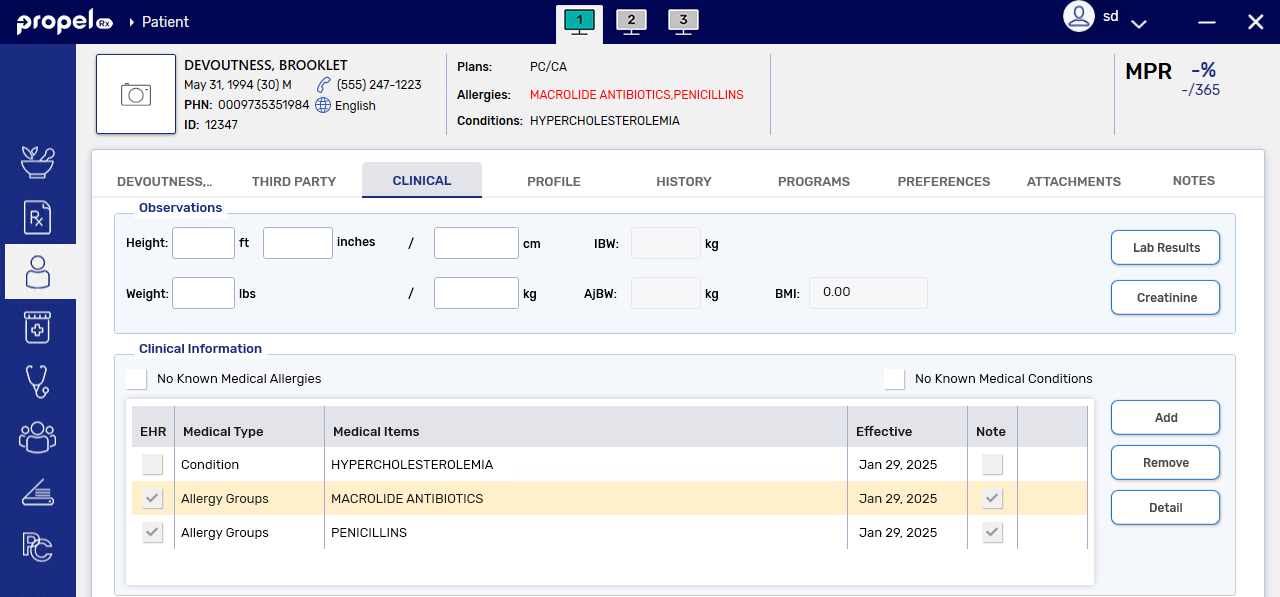
Select the Clinical tab.
-
In the Clinical Information section, highlight the Allergy.
-
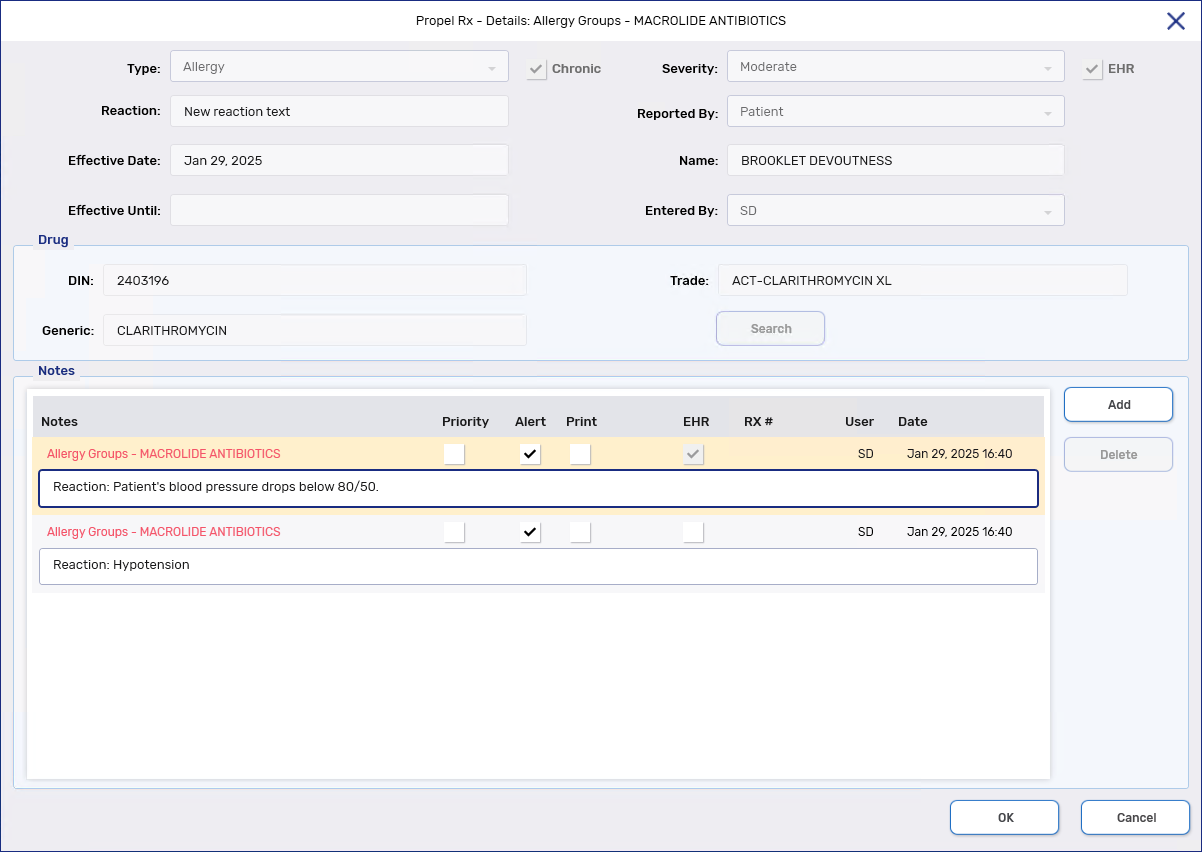
Select Detail. The Details window opens.
-
In the Notes section, edit the note text.
-
Select OK.
-
Select Save.
A processing message displays indicating the information is being transmitted to the EHR. If transmission fails for the updated note, the changes are reverted.
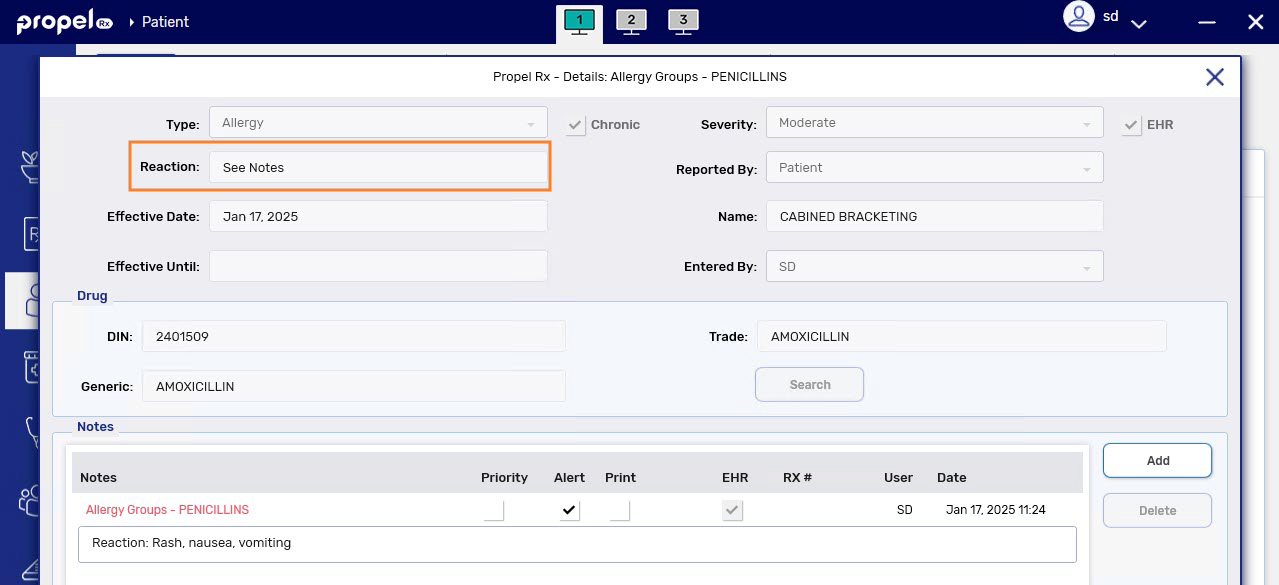
A Reaction note is automatically transmitted to the EHR if a Reaction was entered and there were no other EHR notes for the record. To avoid mismatches between the Reaction field and Notes section, when an existing Reaction note is modified, the text in the Reaction field is updated to “See notes” once the updated note has transmitted successfully.
You can add a note to an existing Clinical Information record and transmit them to the EHR if needed. This can be done for records that are saved locally in Propel Rx or only exist on the EHR.
Adding Notes to a Local Clinical Information Record
To add notes to a local Clinical Information record:
-
Open the Patient Folder.
-
Select the Clinical tab.
-
In the Clinical Information section, highlight the Clinical Information record.
-
Select Detail. The Details window opens.
-
In the Notes section, select Add.
-
Enter information in the Notes textbox.
-
Select the following checkboxes if applicable:
-
Priority - if you want the note to pop up as an alert when opening the Patient Folder or processing a prescription in Rx Detail. If you already viewed the pop up when opening the Patient Folder, it does not display again in Rx Detail.
-
Alert - if you want the note to appear in the Rx Detail Alerts section when processing a prescription.
-
Print - if you want the note to print under the Notes/Alerts section of the Half label or if Digital Workflow is enabled, appear under the Clinical Review Notes tab.
-
EHR - if you want to transmit the note to the EHR. By default, this checkbox is ON if the EHR checkbox for the overall record is on.
-
-
Select OK.
-
Select Save.
-
If the EHR checkbox was selected, a processing message displays indicating the information is being transmitted to the EHR.
-
The Note checkbox in the Clinical Information grid displays a checkmark.
-
The note also displays in the Patient Folder Notes tab.

-
Adding Notes to a Non-Local Clinical Information Record
To add notes to a non-local Clinical Information record:
-
Open the Patient Folder.
-
Select the Clinical tab.
-
In the Clinical Information section, select EHR Query. The EHR Access Reason window opens.
-
Select the reason for accessing the patient's EHR from the dropdown.
-
Optional: Enter any comments related to the access reason.
-
Select OK. The EHR - Clinical window opens.
-
Select the applicable record.
-
Select Detail. The EHR Clinical Details window opens.
-
In the Record Notes section, select the Add button
 . The Add record Notes window opens.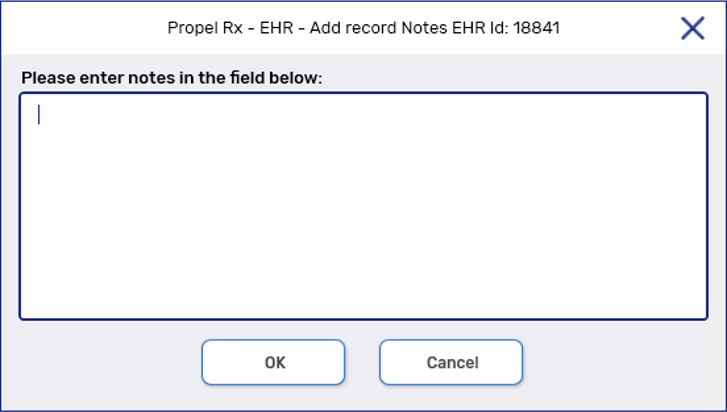
-
Enter your note in the text box.
-
Select OK. A processing message appears for the transmission of the note to the EHR. If the transmission was successful, the note appears in the Record Notes section.
-
Select OK to close the EHR Clinical Details window.
-
Select OK to close the EHR - Clinical window.
To add notes to a Clinical Information record:
-
Open the Patient Folder.
-
Select the Clinical tab.
-
In the Clinical Information section, highlight the Clinical Information record.
-
Select Detail. The Details window opens.
-
In the Notes section, select Add.
-
Enter information in the Notes textbox.
-
Select the following checkboxes if applicable:
-
Priority - if you want the note to pop up as an alert when opening the Patient Folder or processing a prescription in Rx Detail. If you already viewed the pop up when opening the Patient Folder, it does not display again in Rx Detail.
-
Alert - if you want the note to appear in the Rx Detail Alerts section when processing a prescription.
-
Print - if you want the note to print under the Notes/Alerts section of the Half label or if Digital Workflow is enabled, appear under the Clinical Review Notes tab.
-
-
Select OK.
-
Select Save.
-
The Note checkbox in the Clinical Information grid displays a checkmark.
-
The note also displays in the Patient Folder Notes tab.
-